
Share your credential on LinkedIn
Add your Ewance verified credential to LinkedIn's Licenses & Certifications section in two minutes — with the verification URL preserved so recruiters can confirm authenticity in one click. Step-by-step with screenshots.
Adding your Ewance credential to LinkedIn takes about two minutes. The important thing is that the verification URL travels with it — that's what makes recruiters trust it. A LinkedIn certification with a verifiable link says "this person completed X, and you can confirm it cryptographically in your browser right now."
Ewance opens with the "Add to LinkedIn" button right on the credential page and pre-loads everything LinkedIn doesn't auto-pull (skills, cert image). You just paste and click.
What your credential looks like
Every accepted submission gets a verifiable credential page like this:
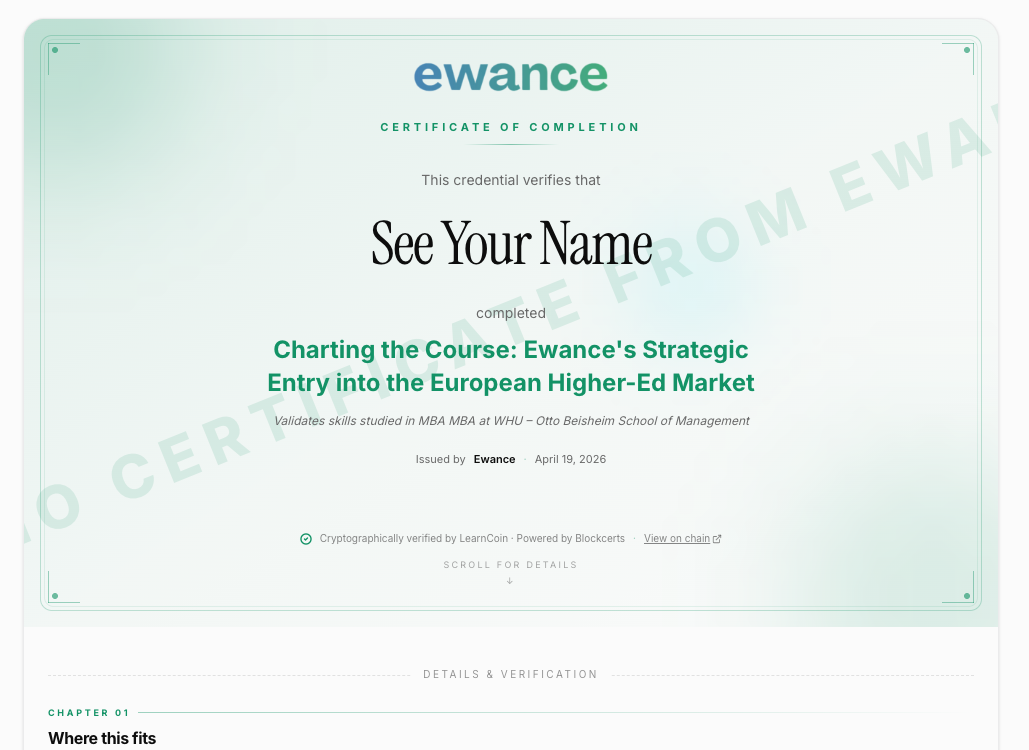
You can see a live verified credential here: verify.ewance.com/credentials/0e03a5ac-… — that's a real, anchored credential. Click the "Verify cryptographically on LearnCoin" button on the page to see the five-check verification run client-side.
Why this matters
A LinkedIn certification that's just text says "this person claims to have completed X." A LinkedIn certification with a verification URL says "this person completed X, and you can confirm it cryptographically right now." The second is the one that actually moves a hiring conversation forward.
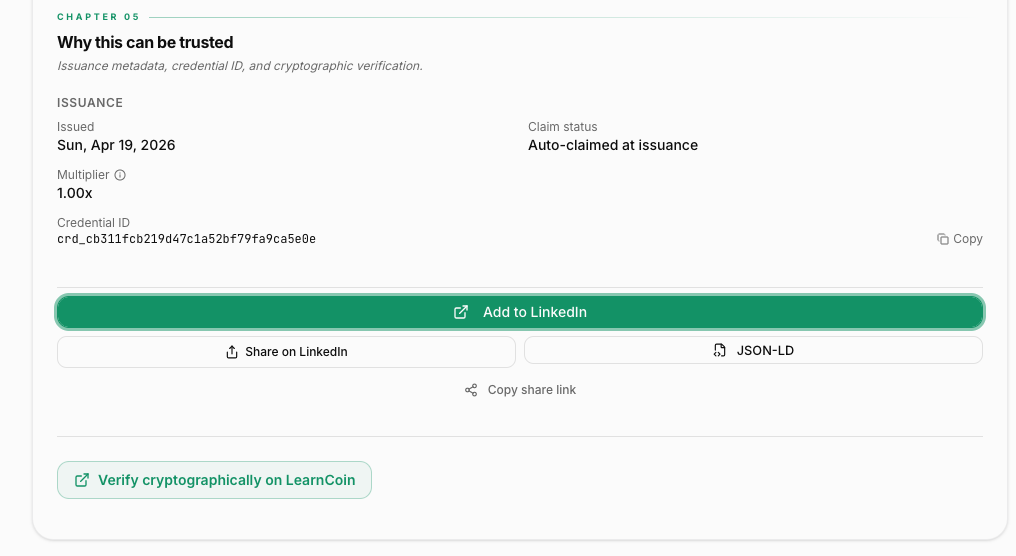
Step 1 — Click "Add to LinkedIn" on your credential
On your credential page (verify.ewance.com/credentials/{credentialId}), scroll to Chapter 05 — Why this can be trusted and click the green Add to LinkedIn button.
Step 2 — Grab your skills + cert image
LinkedIn's form doesn't auto-pull skills or media, so Ewance preps both for you. The helper modal shows:
- Your skills — paste these into LinkedIn's Skills field (up to 5).
- Your cert image — download it; you'll drag it into LinkedIn's Media section a few steps from now.
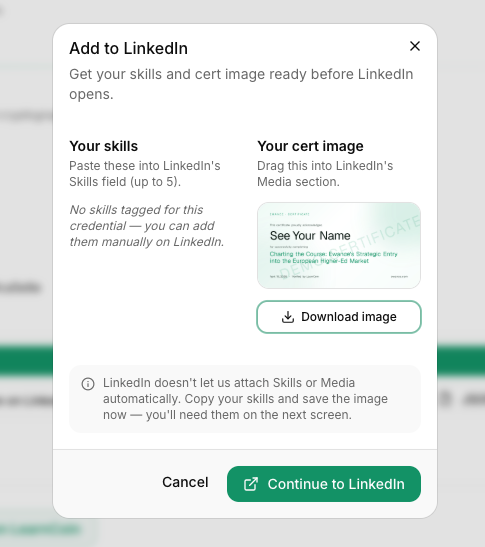
Click Download image, copy the skills, then Continue to LinkedIn.
Step 3 — LinkedIn opens with the form pre-filled
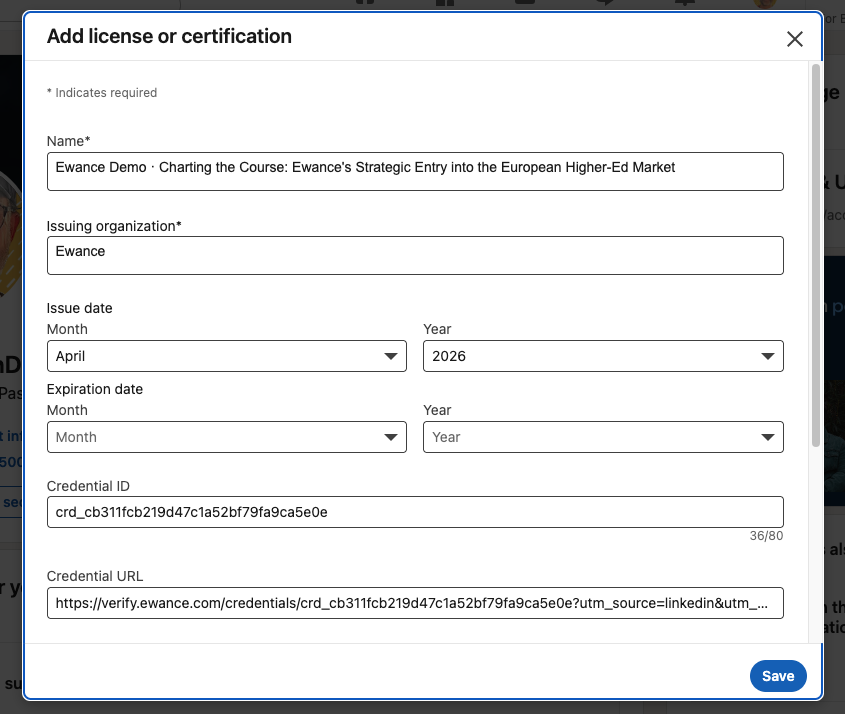
LinkedIn's Add license or certification form opens with the top fields already populated:
- Name — challenge title (prefixed with "Ewance Demo · …" for demo credentials).
- Issuing organization — Ewance.
- Issue date — pulled from your credential.
- Credential ID — the canonical ID (e.g.
crd_cb311fcb…). - Credential URL — the full verification link, with tracking parameters.
Leave the Credential URL alone
The Credential URL is what makes the entry verifiable. Don't replace it with a shorter URL or a copy — the parameters help recruiters and analytics, but the credential ID is what actually drives verification.
Step 4 — Scroll down to Skills + Media
Scroll past the date fields. You'll see two more sections to fill in.
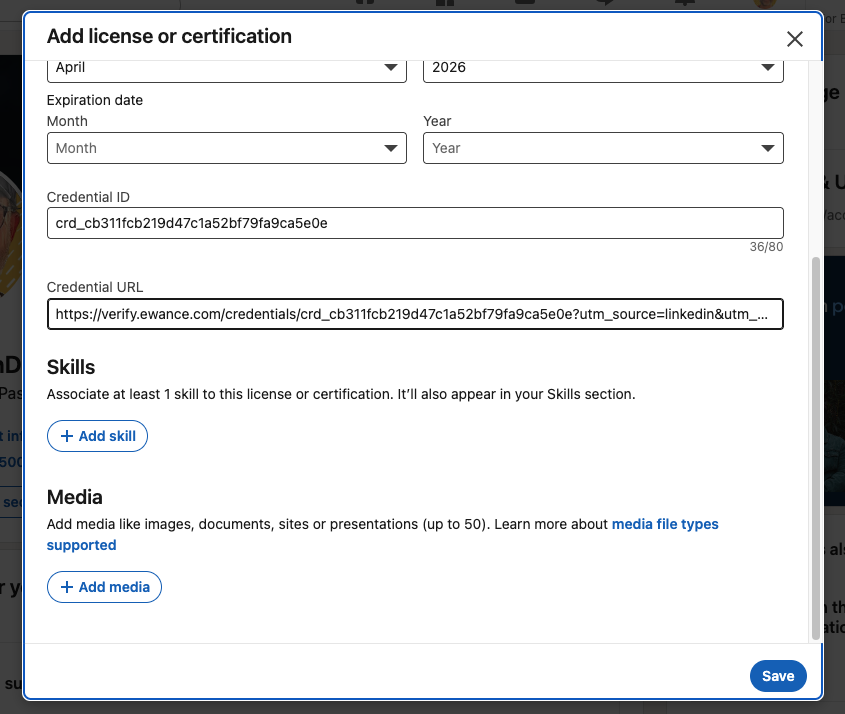
Click + Add skill for each skill from the Ewance helper modal (up to 5). LinkedIn associates them with this certification and they also appear in your top-level Skills section.
Step 5 — Add the cert image as Media
Under Media, click + Add media. LinkedIn offers three options:
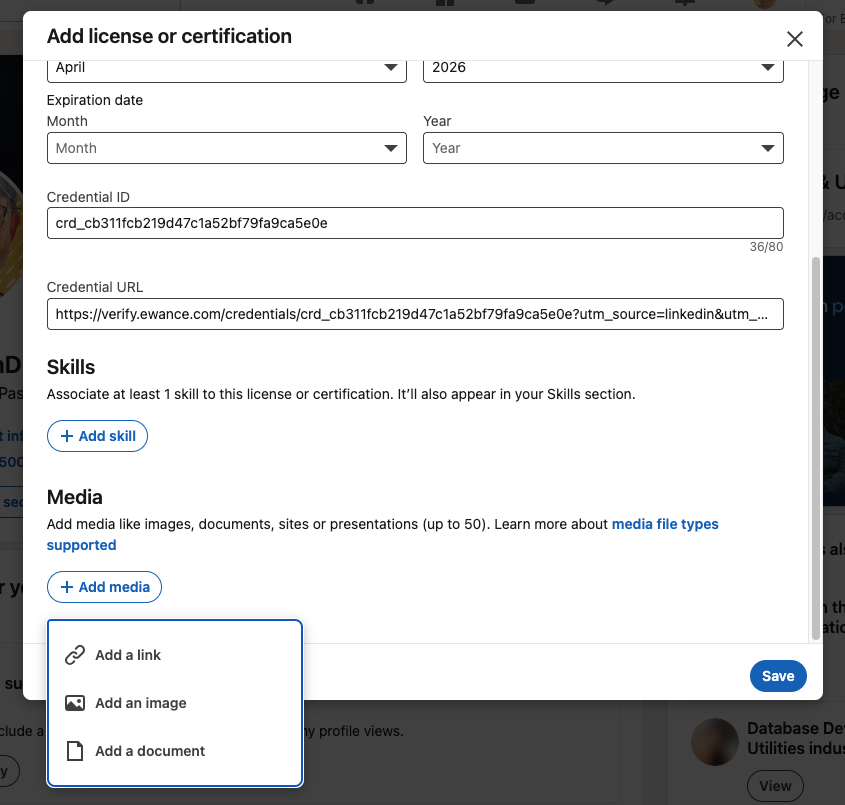
Pick Add an image.
Step 6 — Upload + title the cert image
Drag the cert image you downloaded into the upload area, then add a title and a short description. Something like:
- Title: My New Certificate from Ewance
- Description: Bragging from the BlockChain :)
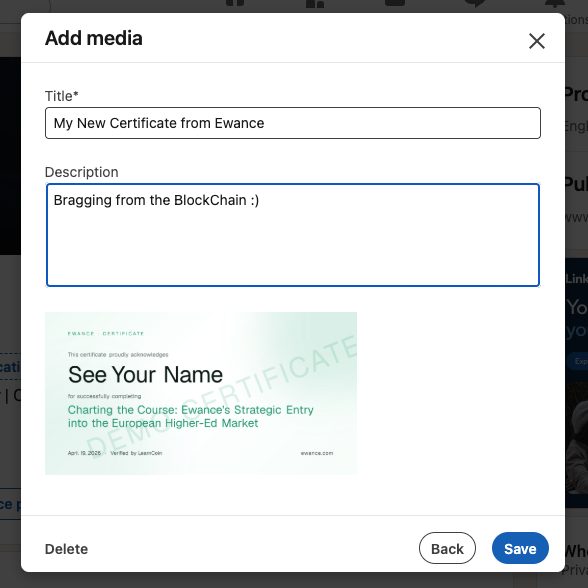
Hit Save.
Step 7 — Confirm the entry, then save
Back in the certification form, you'll see the media attached as a thumbnail next to its title and description.
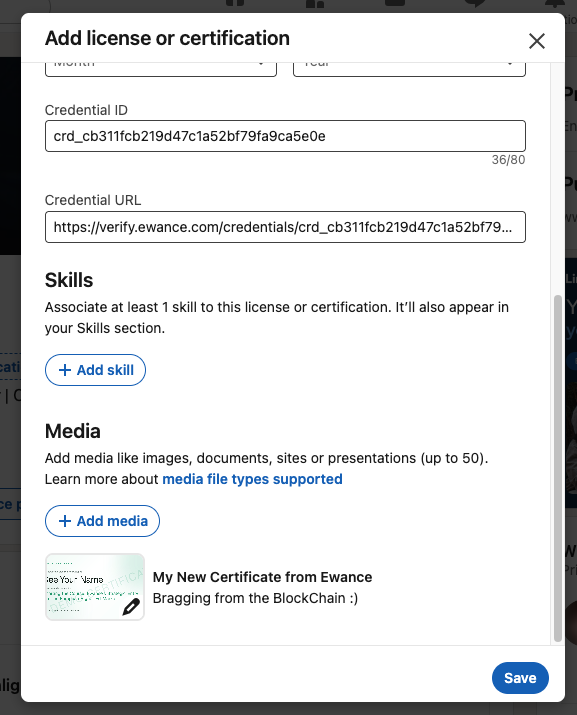
Click the blue Save button at the bottom. LinkedIn adds the certification to your profile.
Step 8 — How it appears on your profile
A. The entry on your profile
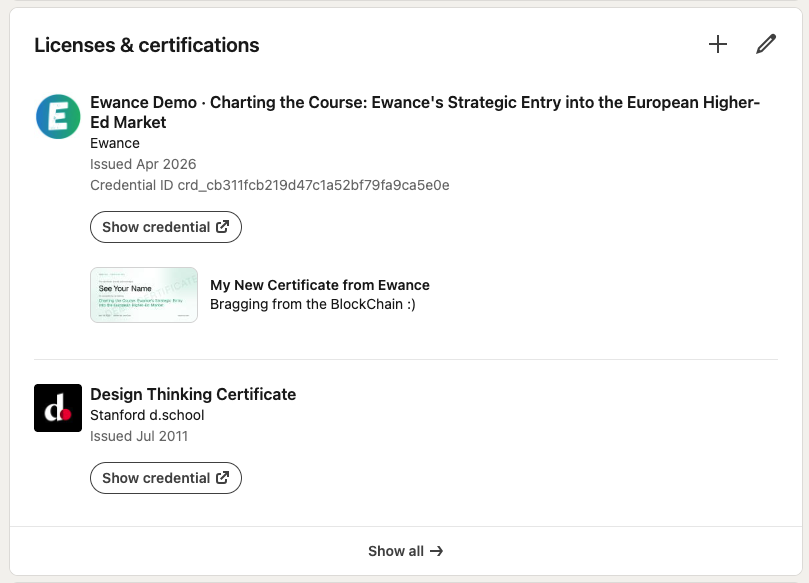
Your Licenses & Certifications section now shows the Ewance entry up top, with:
- The Ewance logo (LinkedIn pulls it automatically).
- The challenge title.
- The issuer and issue date.
- The credential ID.
- A Show credential button that opens your verification URL in a new tab.
- The cert image as media right below.
B. Where "Show credential" leads
Clicking Show credential opens the official Ewance verifier page (powered by LearnCoin under the hood) in a new tab. This is where the cryptographic checks actually run — five of them, client-side, with no API call back to Ewance. The recruiter sees the full certificate exactly as it was issued, plus a one-click "Verify cryptographically on LearnCoin" button for the deeper trust chain.
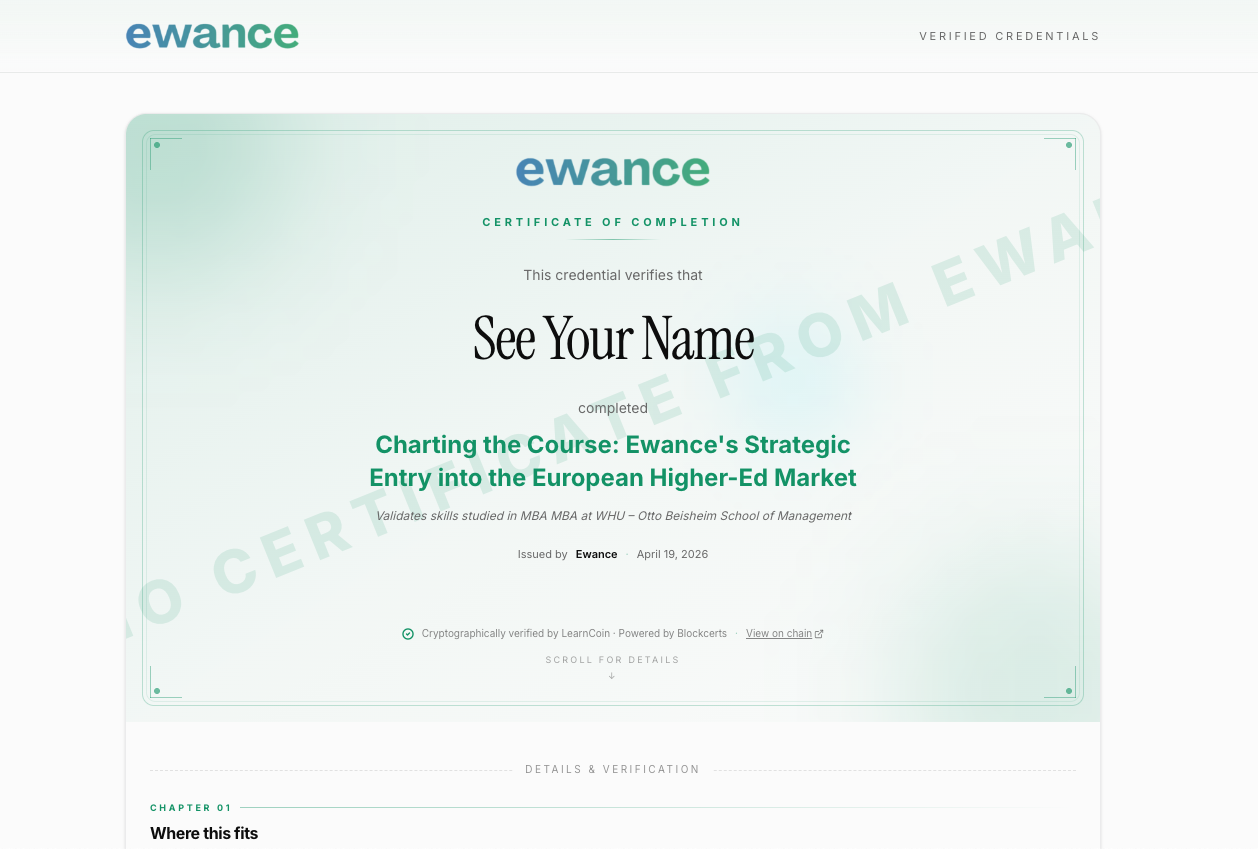
The verifier surface lives at verify.ewance.com — Ewance branded on the front, anchored on the public blockchain via LearnCoin underneath. See Certificates for the full mechanics.
Step 9 — What recruiters see when they click the image
When a recruiter clicks the cert thumbnail on your profile, LinkedIn opens it in a media viewer with your title and description on the right.
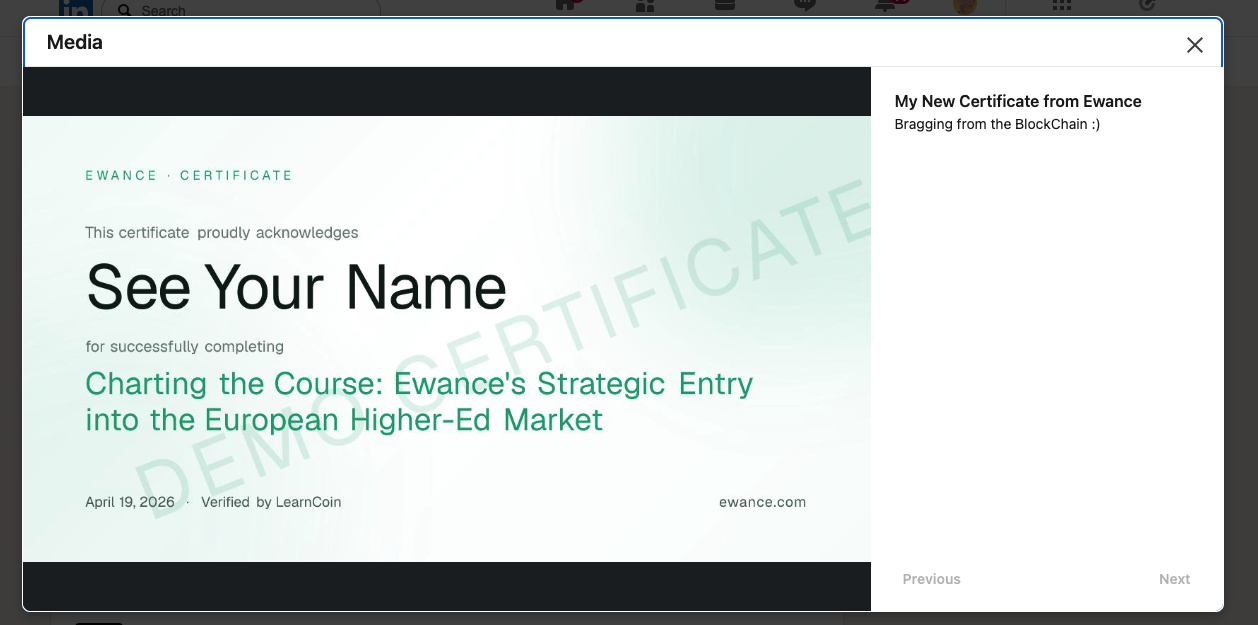
From there, Show credential opens the live verifier — five cryptographic checks run in their browser, no Ewance API call needed, no trust required. See Certificates for the underlying mechanics, or jump to Verified credentials for the recruiter view.
Optional — Announce it as a post
The certification on your profile is the long-term signal. A short post is the short-term broadcast — it surfaces the credential to your network, lands in feeds, and makes the credential discoverable through search. LinkedIn auto-generates a rich preview card from the verify.ewance.com URL, so you don't have to attach an image — paste the link and LinkedIn does the rest.
Here's a real example post — the one the cert image in this guide came from:
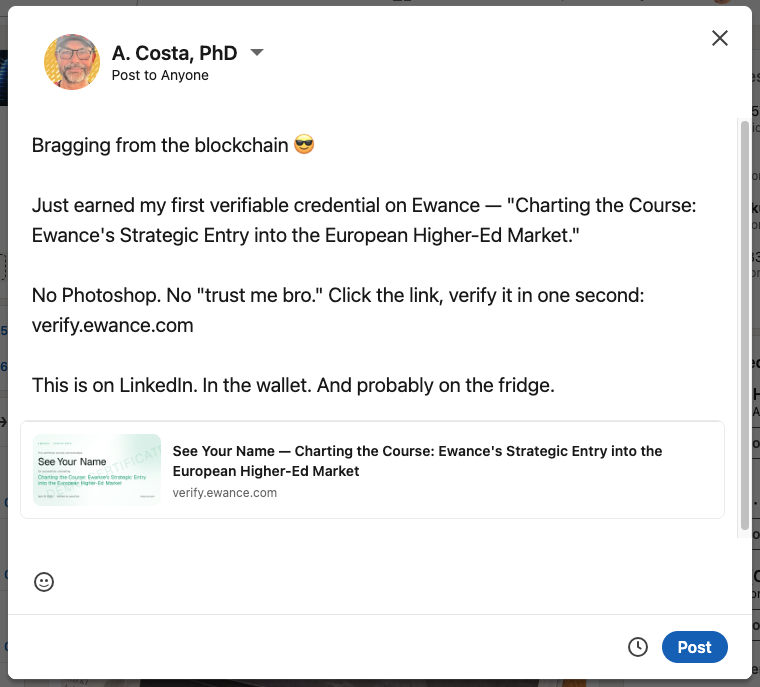
The post text:
Bragging from the blockchain 😎
Just earned my first verifiable credential on Ewance — "Charting the Course: Ewance's Strategic Entry into the European Higher-Ed Market."
No Photoshop. No "trust me bro." Click the link, verify it in one second: verify.ewance.com
This is on LinkedIn. In the wallet. And probably on the fridge.
A few things this post does well, in case you want to copy the structure:
- Specific. It names the challenge. Generic "I'm proud to share…" posts get scrolled past; specific titles get clicks.
- Honest. "No Photoshop. No 'trust me bro.'" — leans into the verifiability instead of dancing around it.
- Actionable. "Click the link, verify it in one second" — gives the reader a one-second loop they can actually complete.
- Self-aware tone. "And probably on the fridge" — humour signals confidence and shareability without being arrogant.
LinkedIn's algorithm rewards posts that get specific, technical engagement. Asking for critique on the work itself ("here's my analysis — what would you push back on?") tends to land better than pure announcements, and starts the kind of conversations that turn into recruiter messages.
Need help?
If the Show credential button doesn't appear on your LinkedIn entry, the most common cause is missing the URL when filling the form. Open the credential in your profile, click Edit, and paste the verification URL into the Credential URL field.
If verification itself returns an error: [email protected] with the credential ID — we'll look into it.
Certificates
Your Ewance certificate is a verifiable, blockchain-anchored credential — not a PDF. Anyone can confirm it without trusting Ewance. Here's what it actually contains and how verification works.
Who owns your work?
You own everything you produce on Ewance — full stop. Plain-English answers to the IP questions students ask most: portfolio rights, sharing, derivative work, and edge cases.