
Spot Ewance credentials on LinkedIn
How to recognise a verifiable Ewance credential on a candidate's LinkedIn profile, where the verification flows to, and the candidate-side upload journey behind it — with real screenshots.
Every Ewance credential leaves the same markers on a candidate's LinkedIn profile. Once you know what to look for, you can verify the credential cryptographically before the first message — no email to us, no API call, no waiting.
This page walks through three things:
- What you see on a candidate's profile when they've added an Ewance credential.
- Where verification goes when you click through.
- How the candidate got it there — so you understand the trust chain end-to-end.
1. What an Ewance credential looks like on a profile
On a candidate's public LinkedIn profile, the Licenses & certifications section displays the Ewance entry with three distinctive markers:
- Issuer logo at the row head (the Ewance
[E]mark). - Issuer name + issuance date under the challenge title.
- Show credential link that opens the live public verifier in a new tab.
- Cert image attached as media, directly below the entry.
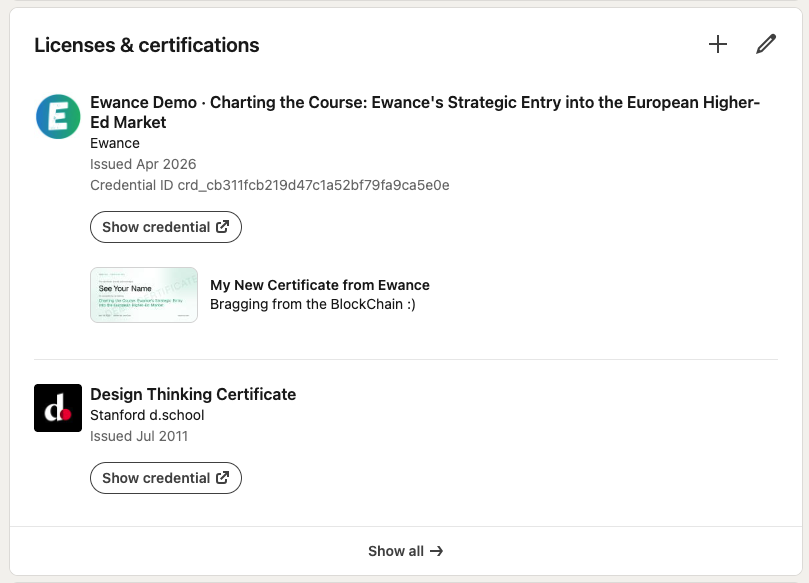
If you see all three together, you're looking at a verifiable credential. Faked certifications miss at least one — usually the Show credential link goes nowhere, or the issuer name doesn't resolve to a real organisation.
2. What recruiters see when they click into the cert image
LinkedIn's media viewer renders the certificate full-size with the candidate's caption beside it. This is what surfaces when you click the cert thumbnail on the profile — useful for a quick visual gut-check before deciding whether to verify.
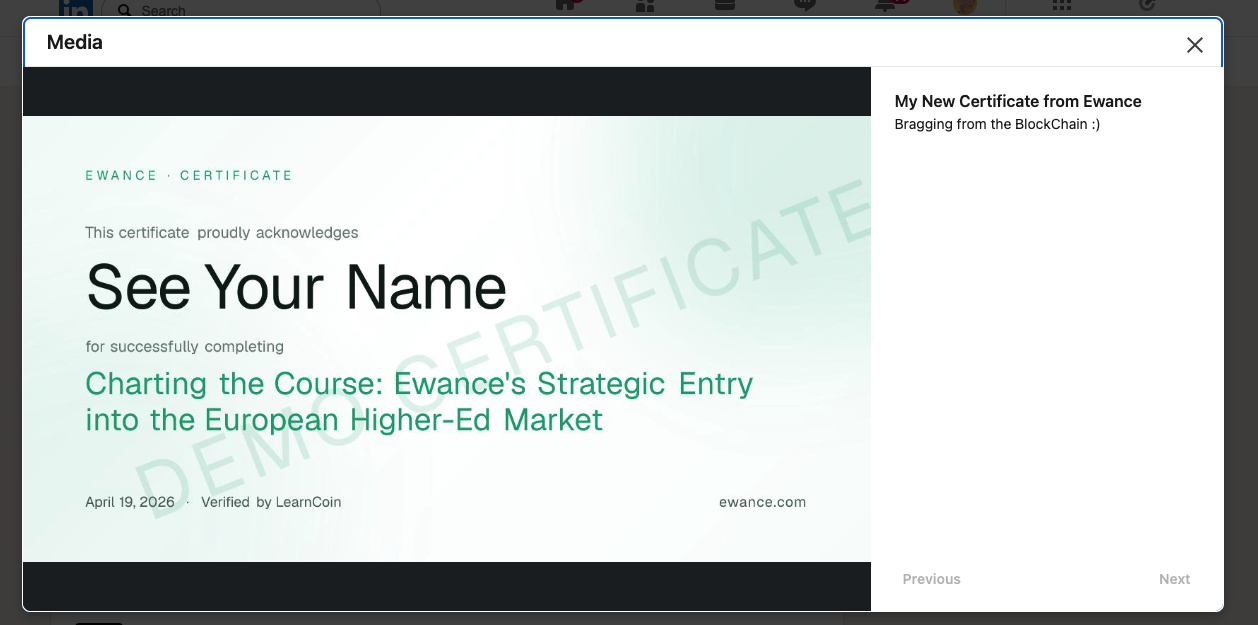
The cert image is just a visual confirmation — it's not the cryptographic proof. For that, click Show credential.
3. Where "Show credential" goes — the live verifier
Clicking Show credential opens the public Ewance verifier page in a new tab. This is the page that runs the actual cryptographic checks — schema, signature, issuer key, on-chain anchor, revocation — client-side in your browser, with no API call back to us.
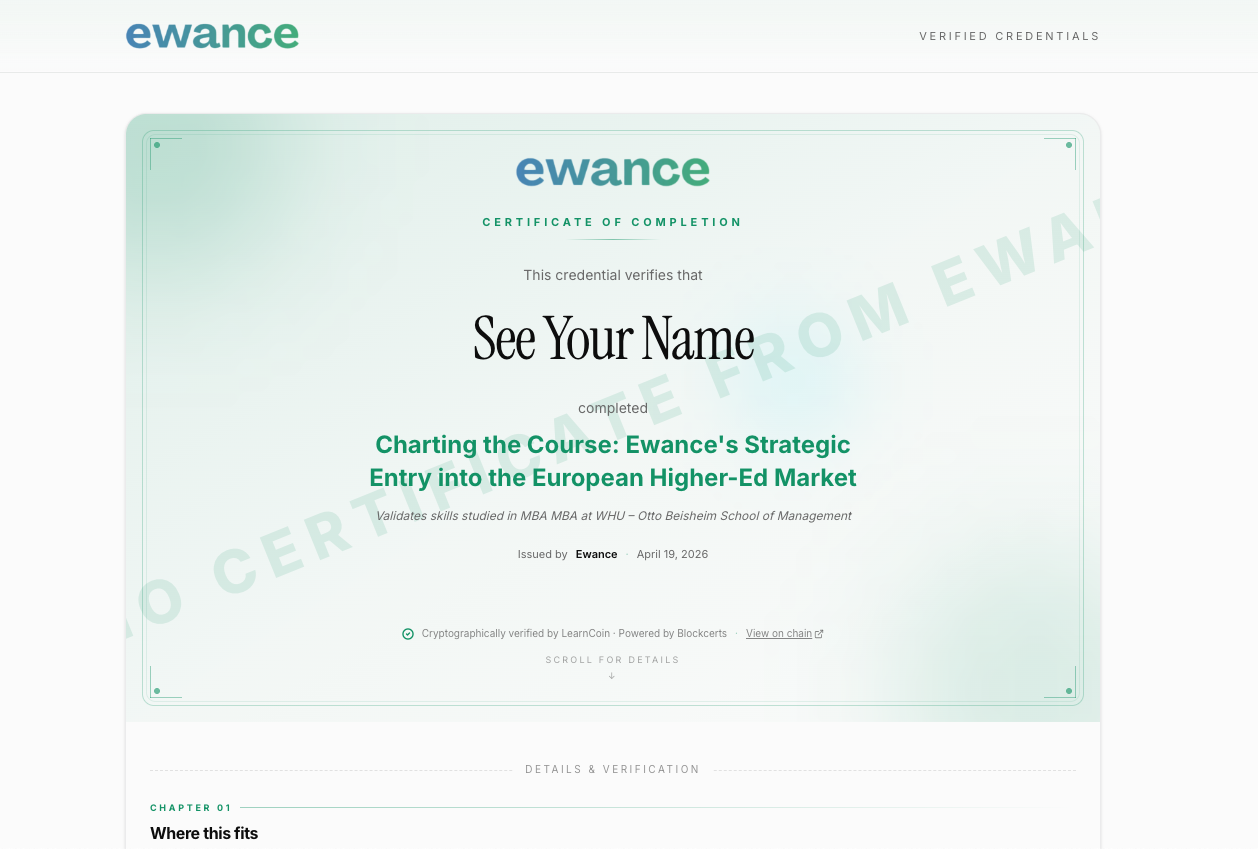
A "Cryptographically verified by LearnCoin" badge on this page means all five checks passed. If any check fails, the verifier returns the specific reason (revoked, signature invalid, anchor mismatch, etc.).
See Verified credentials for the underlying mechanism.
4. Some candidates announce the credential as a post
LinkedIn auto-generates a rich preview card from the verify.ewance.com URL. So if a candidate writes a short announcement post with the link, it surfaces in your feed and search alongside the formal certification entry.
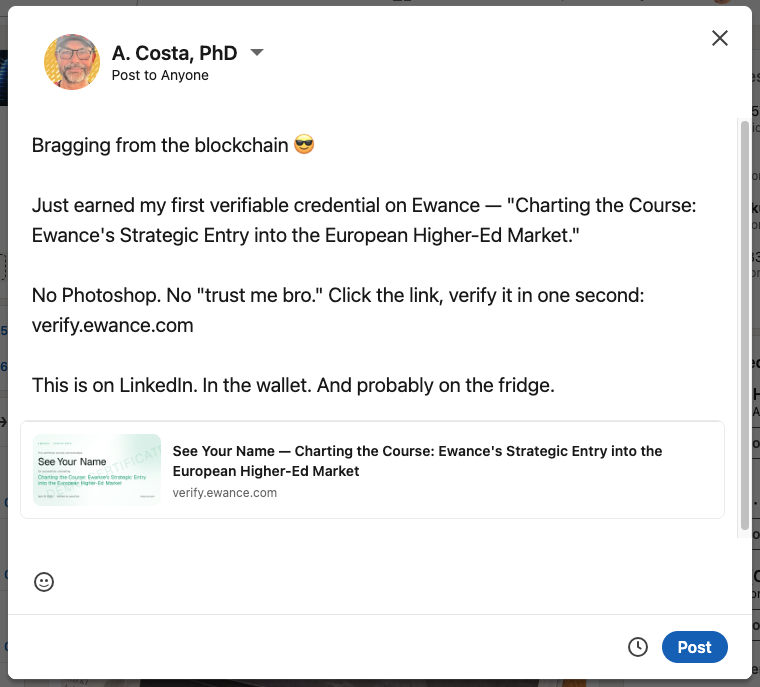
Two implications for recruiters:
- Search visibility — posts that mention specific challenge titles ("market entry," "circuit design," etc.) show up in LinkedIn keyword search alongside profile content. Worth searching for the discipline + "Ewance" together if you're hunting at scale.
- Engagement signals — candidates who post their credentials publicly tend to engage with replies. A comment asking about the work itself starts a more honest conversation than a cold InMail.
5. How the credential got onto the profile
If you've never seen the candidate-side upload flow, it's worth understanding so you trust the chain:
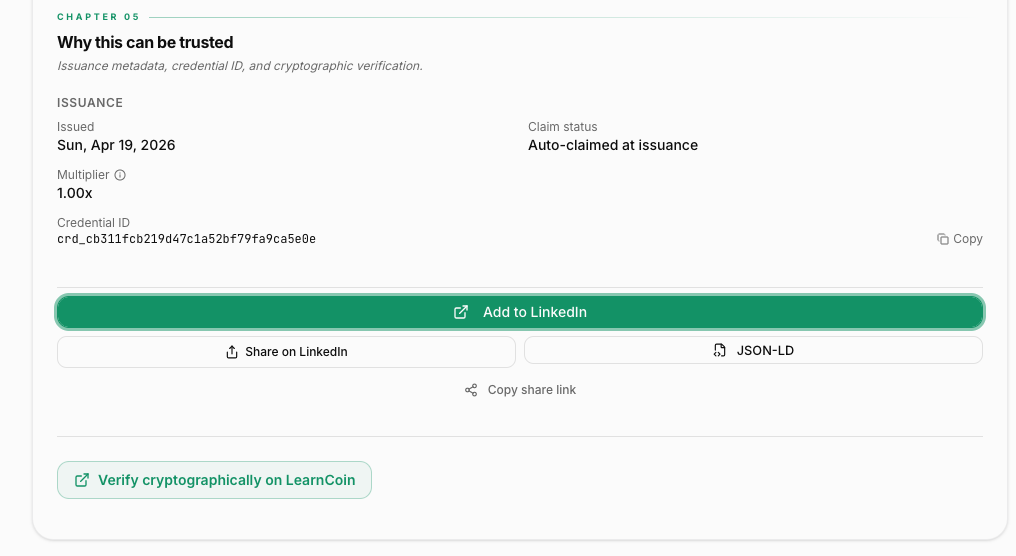
The candidate starts on their Ewance credential page and clicks the green Add to LinkedIn button.
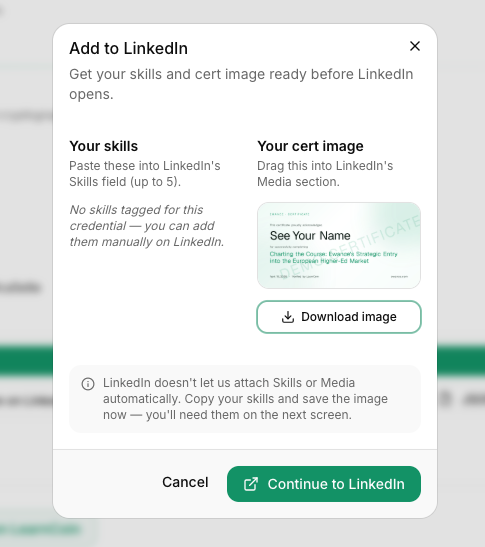
Ewance opens a helper modal that pre-loads the skills and downloads the cert image — so LinkedIn's form has everything it needs.
LinkedIn's "Add license or certification" form opens with the top fields pre-filled from Ewance — challenge name, issuer, date, Credential ID, and the Credential URL that points to the public verifier.
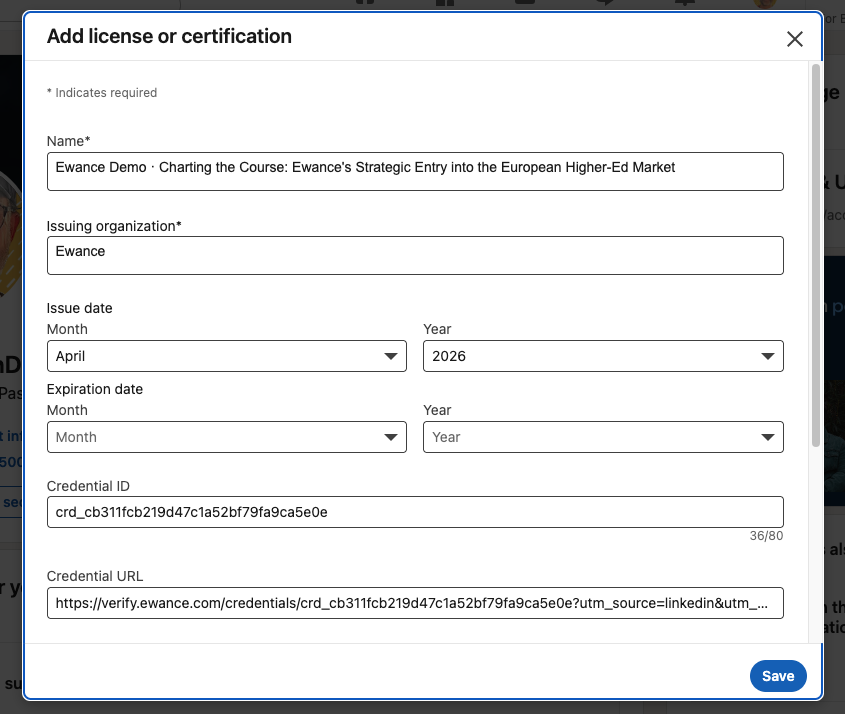
The Credential URL field is what makes the Show credential button on the profile work later. If a candidate manually creates a certification entry without that field, you won't be able to verify it — that's a useful tell when you're scoping a profile.
For the full candidate-side walkthrough, see Share your credential on LinkedIn in the Learning track.
Verification checklist
Before reaching out to a candidate based on their Ewance credential:
- The issuer logo is the Ewance
[E]mark, not a custom image. - The issuing organisation reads
Ewanceand resolves to the official company page. - The Show credential button is present.
- Clicking Show credential opens
verify.ewance.com/credentials/.... - The verifier page shows the green "Cryptographically verified by LearnCoin" badge.
If any of those don't match, treat the credential as unverified and ask the candidate directly.
Where to go next
- Verified credentials — the cryptographic mechanism, the five checks, integration with your ATS.
- Searching for talent — how to filter the Ewance pool itself (separate from LinkedIn discovery).
- From shortlist to hire — outreach scripts, interview design when you've already read the work.
Searching for talent
How to use Ewance's filters to find candidates whose shipped work matches your role — discipline, deliverable, region, sponsor, rubric outcome. Signals worth weighting and shortcuts that save hours.
From shortlist to hire
Practical guidance on outreach, interview design, and offer hygiene when hiring from Ewance. The platform stays out of your way after the message — but the work happened differently, so the interview should look different too.